 Barcode Next
Presets and reusable settings
Save symbol and print configurations and understand their scope.
Barcode Next has three distinct kinds of reusable settings. Saving a preset does not save the entire current Data table or make a snapshot of the whole application session.
| Preset | Where used | Saves | Does not save |
|---|---|---|---|
| Symbol option preset | Generator’s Options area | Barcode-specific sizing and appearance settings | Current data rows |
Media profile (.bnm) |
Print Labels → Page setup | Paper, margins, grid and label-sheet geometry | Printer, row selection, copies |
Print preset (.bnp) |
Print Labels → Size & Position | Barcode placement, size and offsets | Media sheet geometry, printer or current record list |
Save a Symbol option preset
- Select a symbol and configure its available option tabs.
- In the options area, find the Presets selector and save action.
- Choose Save Symbol option preset, enter a descriptive name and confirm.
- If that name exists, review the overwrite confirmation; replacing an existing preset changes what future loads will restore.
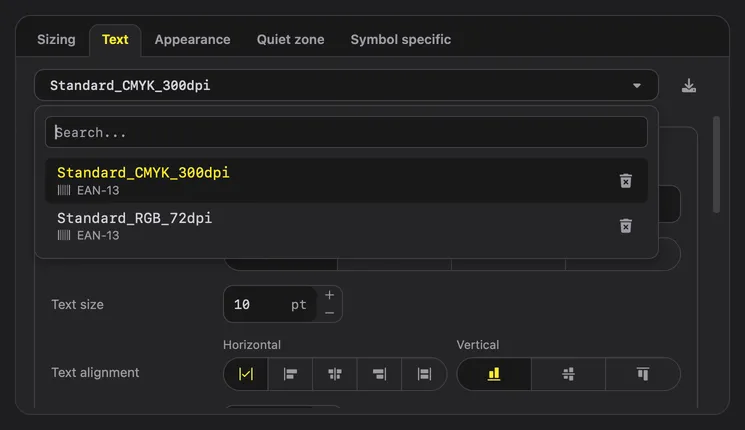
Load, modify or delete a symbol preset
- In the same area, open Presets and select a saved entry for the active format.
- The stored options are applied to the current configuration. If a preset belongs to a different symbol, Barcode Next may show a symbol mismatch confirmation—do not continue without checking compatibility.
- When you change an option after loading, the UI can mark the selection as modified. Save again only if the new settings should replace or supplement the stored preset.
- Use the preset’s action menu to delete it; this is a file deletion, not merely deselection.
A logo referenced by a saved QR preset must remain accessible, or the app can show a loading error. Always inspect the preview after loading.
Save print media geometry
- Open Data → Print, then Page setup.
- Choose a library template under Media type and Profiles, or configure a custom page, margins, grid and spacing.
- Use the profile save action to create a Media profile. Name it after the stock’s physical dimensions or product.
- Reopen Profiles to load the saved media and compare it with the current page preview.
Save barcode placement
- In Print Labels, open Size & Position.
- Select Original, Contain or Cover and adjust alignment and offsets.
- Use the preset save action for a Print preset. Unlike a Media profile, it does not save the paper grid.
The current Print settings printer, collate, calibration enable state, job copies, Print Data inclusion and skipped first-sheet slots remain separate session settings.
Find or change preset folders
Open Settings → User data → Preset file locations. The list includes Symbol option presets, Media profiles and Print presets.
- Open (or the displayed folder path) opens the selected location.
- Change lets you choose a different folder; Save commits that location. Cancel discards the draft.
- Changing locations never moves old files. Move/copy the preset files yourself if needed.
- On macOS, choose folders using the native picker to grant access. If a saved permission becomes invalid, choose the folder again and save.
Do not treat a custom folder as a backup by itself. Keep separate copies before resetting user data, uninstalling or replacing files.