 Barcode Next
Keyboard shortcuts
Find and customize keyboard shortcuts in Barcode Next.
Open Settings → Keyboard shortcuts… to view the shortcuts currently active in your installation. The list reflects any saved overrides; the defaults below are a starting point, not a substitute for the on-screen field.
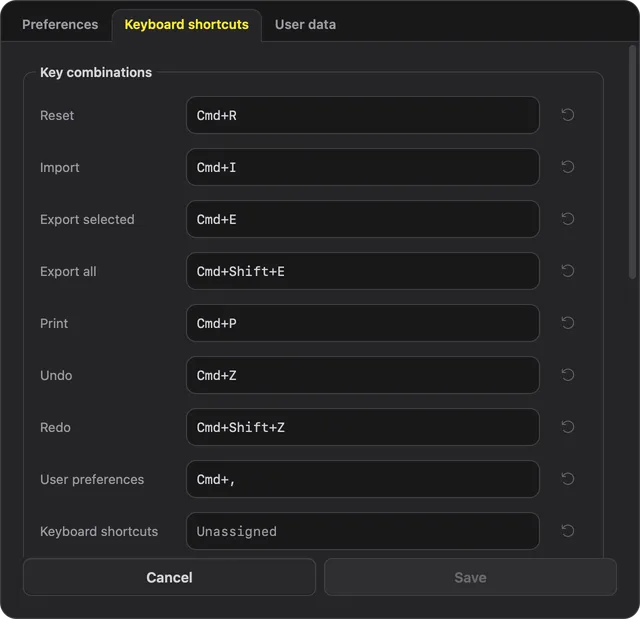
Default shortcuts
| Action | Windows | macOS |
|---|---|---|
| Data → Reset | Ctrl+R | Cmd+R |
| Data → Import | Ctrl+I | Cmd+I |
| Export selected | Ctrl+E | Cmd+E |
| Export all | Ctrl+Shift+E | Cmd+Shift+E |
| Ctrl+P | Cmd+P | |
| Undo / Redo | Ctrl+Z / Ctrl+Y | Cmd+Z / Cmd+Shift+Z |
| User preferences | Ctrl+, | Cmd+, |
| Cut / Copy / Paste | Ctrl+X / C / V | Cmd+X / C / V |
| Select all | Ctrl+A | Cmd+A |
| Delete selected data rows | Delete or Backspace | Backspace or Delete |
| Preview zoom to fit | Ctrl+0 | Cmd+0 |
| Preview zoom 1x | Ctrl+1 | Cmd+1 |
Redo also recognizes Ctrl+Shift+Z on Windows and Cmd+Y on macOS where applicable. Some commands are contextual: data-row deletion applies to a selected table, while zoom shortcuts apply to Preview. Text fields may intercept normal text-editing shortcuts.
Record a custom binding
- Open Settings → Keyboard shortcuts… and find the command you want.
- Focus its shortcut field and press the desired key combination. Focusing alone does not change it.
- Use Tab / Shift+Tab to move between fields. Enter or Escape can leave the field without closing Settings.
- If the combination is allowed and nonconflicting, click Save at the bottom of Settings. Cancel discards the pending changes.
Primary-modifier bindings follow the platform convention: Ctrl on Windows, Cmd on macOS.
Clear or restore
- Press bare Backspace in a shortcut field to clear its binding (the command has no shortcut until restored).
- Use the individual Revert action to restore one default.
- Revert all shortcuts resets the shortcut draft for the complete list; Save commits it.
A reserved OS combination, duplicate or otherwise invalid shortcut prevents Save until resolved. Check the error indication in the Settings dialog.
When a shortcut does not work
Confirm the command is enabled in its menu, the correct panel has focus, no blocking dialog is active and the displayed binding has not been customized. Some keyboard commands cannot override system-level or assistive technology shortcuts.