 Barcode Next
Validation and Symbol Health
Understand invalid input, format constraints, diagnostics and physical scan testing.
Barcode Next separates input validity from symbol quality guidance. Both appear in the generator, but they answer different questions: Can this value be encoded in the selected format? and Does the resulting geometry or appearance raise a production concern?
Read the Data table first
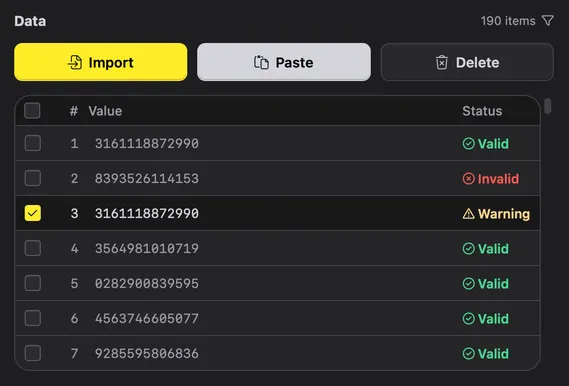
Select a Symbol and enter a record in Data. Each row receives a status such as Valid, Warning or Invalid. Use the status filter to inspect rows by category. A row may be invalid because of length, unsupported characters, a wrong retail check digit or malformed GS1 Application Identifier structure.
Correct the actual value or option at the source. Filtering hides rows from a view; it does not repair their data.
Read Preview → Health Check
- Select a row.
- Look in Preview → Measurements for Symbol size, Canvas size and Module size.
- Open the Health Check area beneath the measurements. Its badge and summary describe the current condition.
- Read each listed notice. Use the notice’s help/detail control for its explanation.
- Change the relevant field in Options and allow the preview/diagnostics to update before checking again.
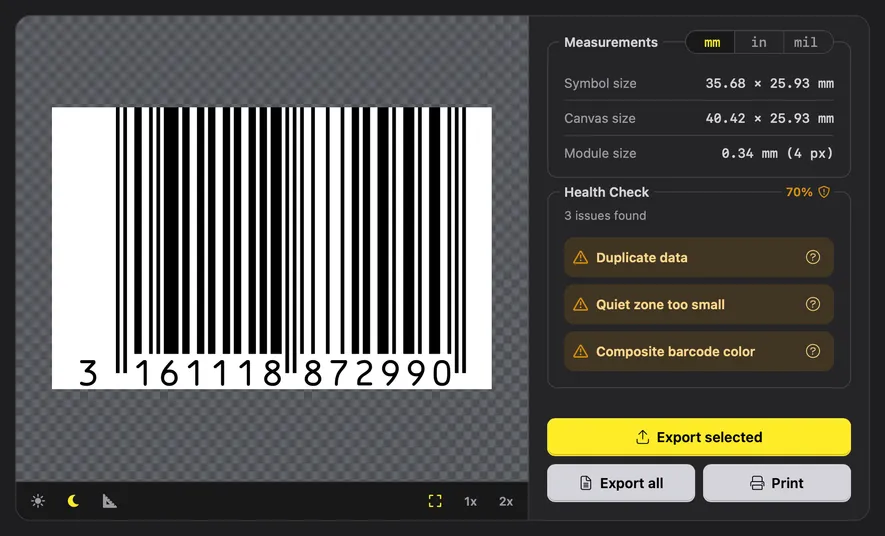
Warnings vary by format. They can concern module width, raster pixel alignment, bar height, quiet zones, capacity, unusual QR styling, postal geometry or a locally performed software-decode check when supported. Not every check applies to every barcode.
What is blocking?
An Invalid data row or a blocking Health Check error can prevent an exportable symbol. A Warning can be non-blocking, which means an export may still be possible; it is not approval of the result for every target standard or printer.
When multiple records are processed through Export all or Print Labels, the application reviews their statuses. Review data can let you return to the generator to fix problems, or continue with eligible rows. Invalid records are not silently repaired.
Decode and physical verification
A local software decode can detect some problems in the generated graphic. It is not the same as testing on the final ink, substrate, size, lamination, label position or device. For regulated, retail or GS1 output, confirm the relevant specification and use suitable physical scanning/verification before a production run.
Common corrections
| Symptom | Where to look |
|---|---|
| Wrong length or check digit | Data row and Symbol specific → Data options |
| Narrow bars or modules | Sizing → Module width, Resolution, Optimize module width |
| Insufficient clear margin | Quiet zone and Sizing → Include quiet zones |
| QR with logo/gradient fails | Appearance and Symbol specific → Error correction |
| Exported size differs from target | Preview → Measurements; verify symbol/canvas dimensions |
See Troubleshooting for corrective workflows.