 Barcode Next
Preferences
Adjust the interface, units and user preferences.
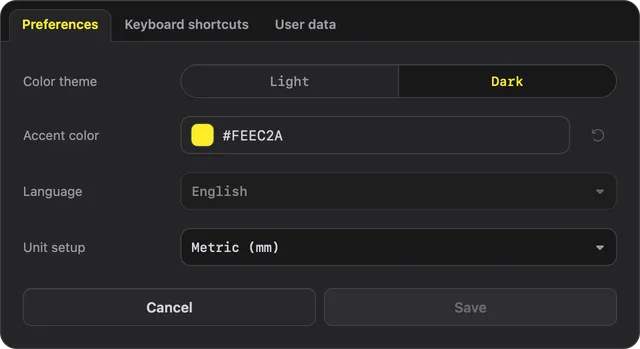
Open Settings → User preferences… to change persistent application settings. The Settings dialog contains three tabs: Preferences, Keyboard shortcuts and User data. Changes are drafted together, so closing it with Cancel discards all pending edits across tabs.
Appearance and accent color
- Open Settings → User preferences…, then the Preferences tab.
- Under Color theme, choose Light or Dark. The new interface theme is previewed immediately.
- Use the accent color picker to choose the interface highlight color.
- Click Save to keep the new values, or Cancel to restore the previously saved theme and accent.
This changes the UI, not the barcode artwork. To change the exported barcode’s foreground or background, use Options → Appearance.
Default measurement units
Under Unit setup, choose Metric (mm) or Imperial (in) for your preferred general interface units. Existing barcode data is not changed by selecting another unit system; check physical sizes after switching if the target workflow requires a precise dimension.
Some individual editing controls also provide their own unit selectors. Those are contextual controls; the persistent default in Settings is not a guarantee that every field must use the same unit.
Language currently lists English and is disabled. No additional UI languages are selectable in this version.
Save and cancel behavior
- Changes in Preferences, Keyboard shortcuts and User data are staged until Save.
- Save is disabled when the settings draft has no changes or a field is invalid.
- Cancel discards the draft, including a temporary theme/accent preview.
- On first launch, the initial preferences flow must be saved to continue.
Reset settings without deleting presets
Open Settings → User data, choose Revert to defaults and read the warning. Confirming resets preference values, shortcut overrides and stored preset-folder locations, but does not delete saved preset/profile files. Complete the requested Restart now action.
If you had custom preset folders, reselect them afterward via User data → Change. Changing a path does not move the underlying files. Read Presets before altering stored locations.
What Settings does not save
A Settings change is not a working-document save. Current barcode records, an in-progress import, or the print workspace’s temporary selections have separate lifetimes. Export current results or save named presets where appropriate before resetting.