 Barcode Next
Troubleshooting
Resolve common data, export, scanning and print alignment issues.
When a result fails, identify the stage: Data entry, Preview/Health Check, export or physical printing. Use the sequences below and note which step first differs from what the app reports.
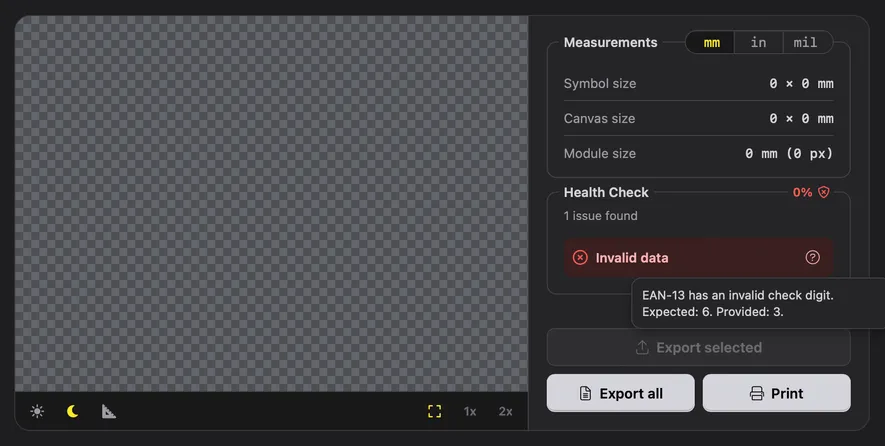
Data row shows Invalid
- Select the affected Data row and read its status/validation detail.
- Confirm the selected Symbol is correct; EAN-13, Code 128 and GS1-128 do not accept interchangeable payloads.
- Inspect the number of digits, allowed character set and check digit. For GS1, verify Application Identifiers and separators.
- Correct the field and confirm it again. If the Data table still shows Invalid, compare with a known valid sample on Barcode Types.
Preview is empty or different from the data
Check that a row is selected and valid. A pending render or invalid payload can leave the preview without an exportable symbol. Inspect Options → Sizing, Appearance and Symbol specific, then use the Preview zoom/fit controls. A canvas theme or guide affects inspection only, not the encoded barcode.
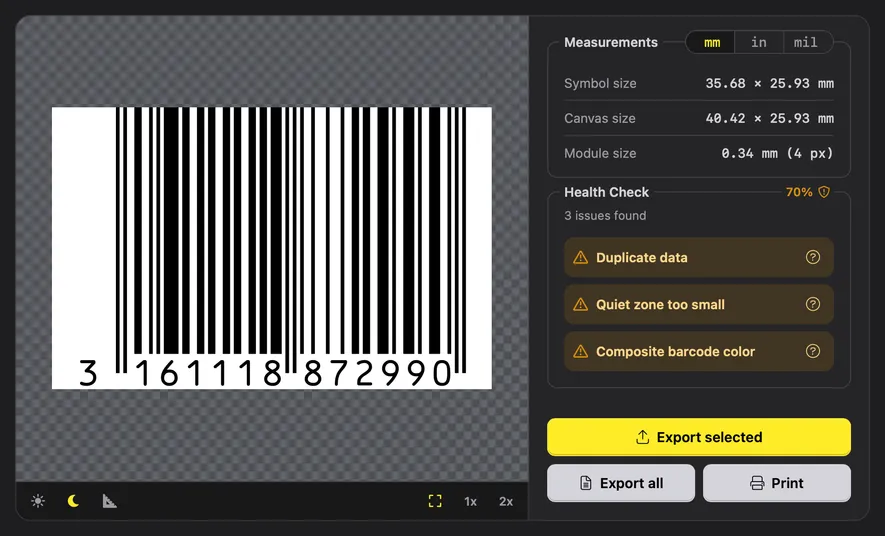
Health Check reports a size or quiet-zone issue
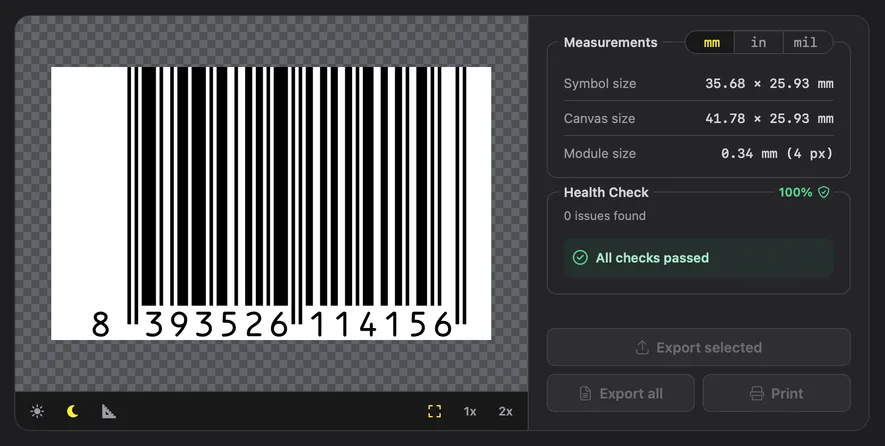
- In Preview → Measurements, read Symbol size, Canvas size and Module size.
- In Options → Sizing, check Target size, Module width, Resolution and Optimize module width.
- Inspect Quiet zone values and keep a clear margin around the bars/modules.
- Recheck the updated Health Check after each change. Printed substrate and reader verification are still needed.
QR Code scans inconsistently
Try Appearance with default square modules, standard finder shapes, high-contrast colors and no logo. Increase the printed module size if necessary. In Symbol specific, consider Error correction and QR version, then re-export and test. Add gradients, logo and shapes back one change at a time to identify the failure.
File export is disabled or fails
Confirm a valid selected record, no blocking Health Check condition and a verified Store licence (Help → About Barcode Next). In the export dialog, choose a supported Format; if CMYK and Custom CMYK ICC profile are selected, a valid ICC file is required before Export is enabled.
For batch output, review Save location, Filename, Overwrite existing files and the completion log. Duplicate values may create filename collisions; use [C] Counter where needed. Try exporting one known-valid row to isolate whether the problem is data-specific.
Export looks blurry or changes physical size
Prefer SVG, PDF or EPS when the consuming application supports them. For raster artwork, increase output resolution in Sizing rather than enlarging a small PNG/JPEG later. In the receiving design software, confirm imported physical size and do not accidentally crop the quiet zone. JPEG compression can degrade narrow bars.
Printed labels do not align with the stock
- In Print Labels → Page setup, compare Page dimensions, orientation, Page margins, grid rows/columns and spacing with the actual label sheet.
- In Size & Position, check Original/Contain/Cover, alignment and offsets; Cover can crop.
- Check Print settings → Printer settings… and disable unintended driver scaling.
- Print a small normal job on plain paper and compare it behind the label stock.
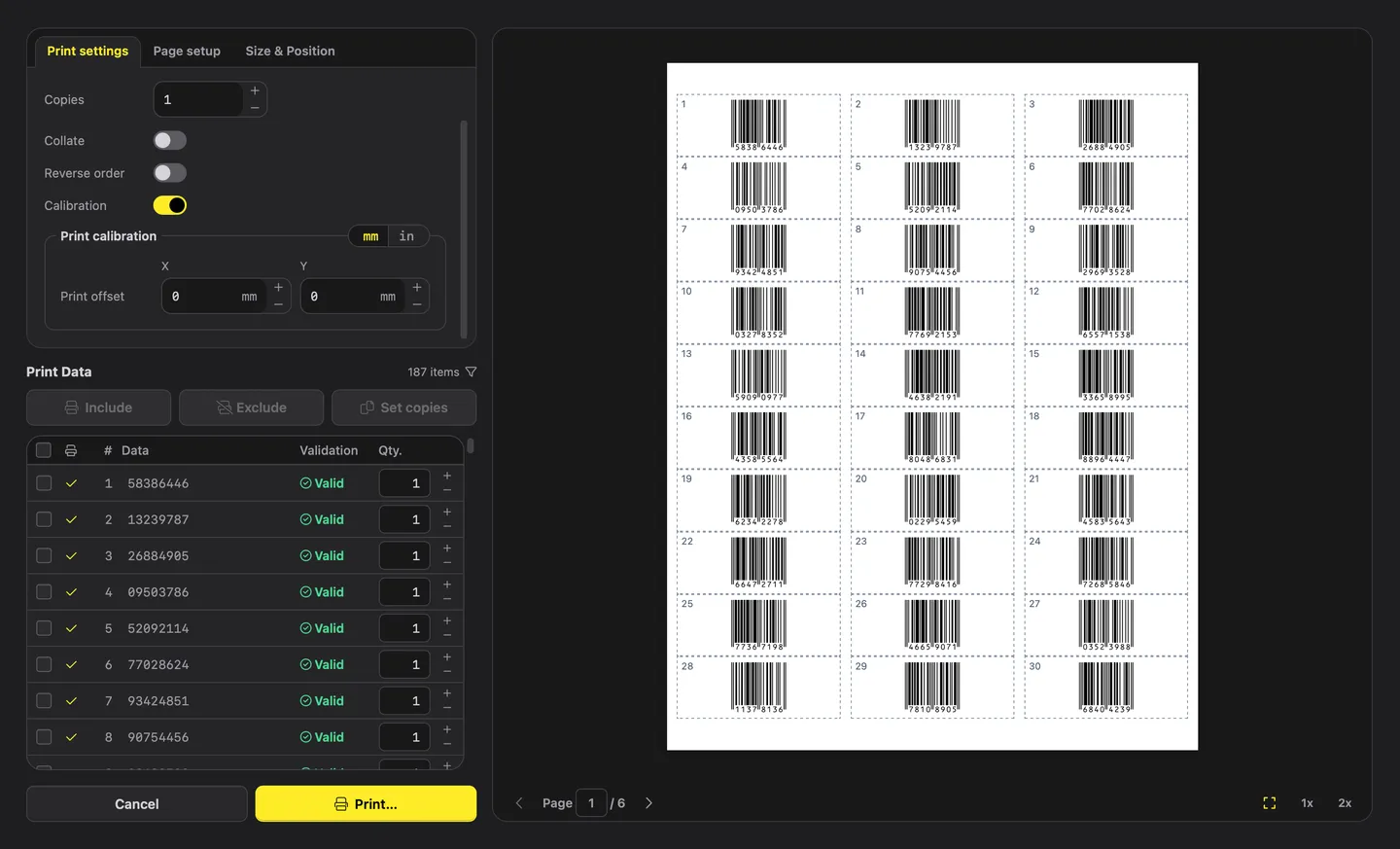
- For a persistent uniform shift, enable Calibration and adjust X/Y, then retest.
Blank pages or unexpected label order
Check Print Data rows, Include/Exclude, each row’s Qty., whole-job Copies, first-sheet skipped slots, Reverse order and the page counter. Blank space from used first-sheet slots is deliberate; page-size or printer scaling mismatches can also create apparent overflow.
Printer not available
Check that the printer is installed and online in the operating system. Reopen Print Labels to refresh the selection, or use its printer controls. A missing printer disables submission; it does not necessarily indicate a problem with the barcode data.
Preset not found after changing folders
Open Settings → User data → Preset file locations. Change updates the location only—it does not move existing .bnm/.bnp/symbol preset files. If you changed folders, inspect the old folder and copy needed files. On macOS, reselect a folder through Change if its saved permission is no longer usable.
Send a reproducible support report
Email support@barcodenext.com with the app version from Help → About, OS, selected Symbol, exact steps, expected result, actual message and (if safe) a screenshot. Remove confidential encoded data. For printing, include stock dimensions and printer model; for batch errors, include the export log with sensitive values removed.