 Barcode Next
Installing Barcode Next
Installing Barcode Next on macOS or Windows and understanding platform-specific licences.
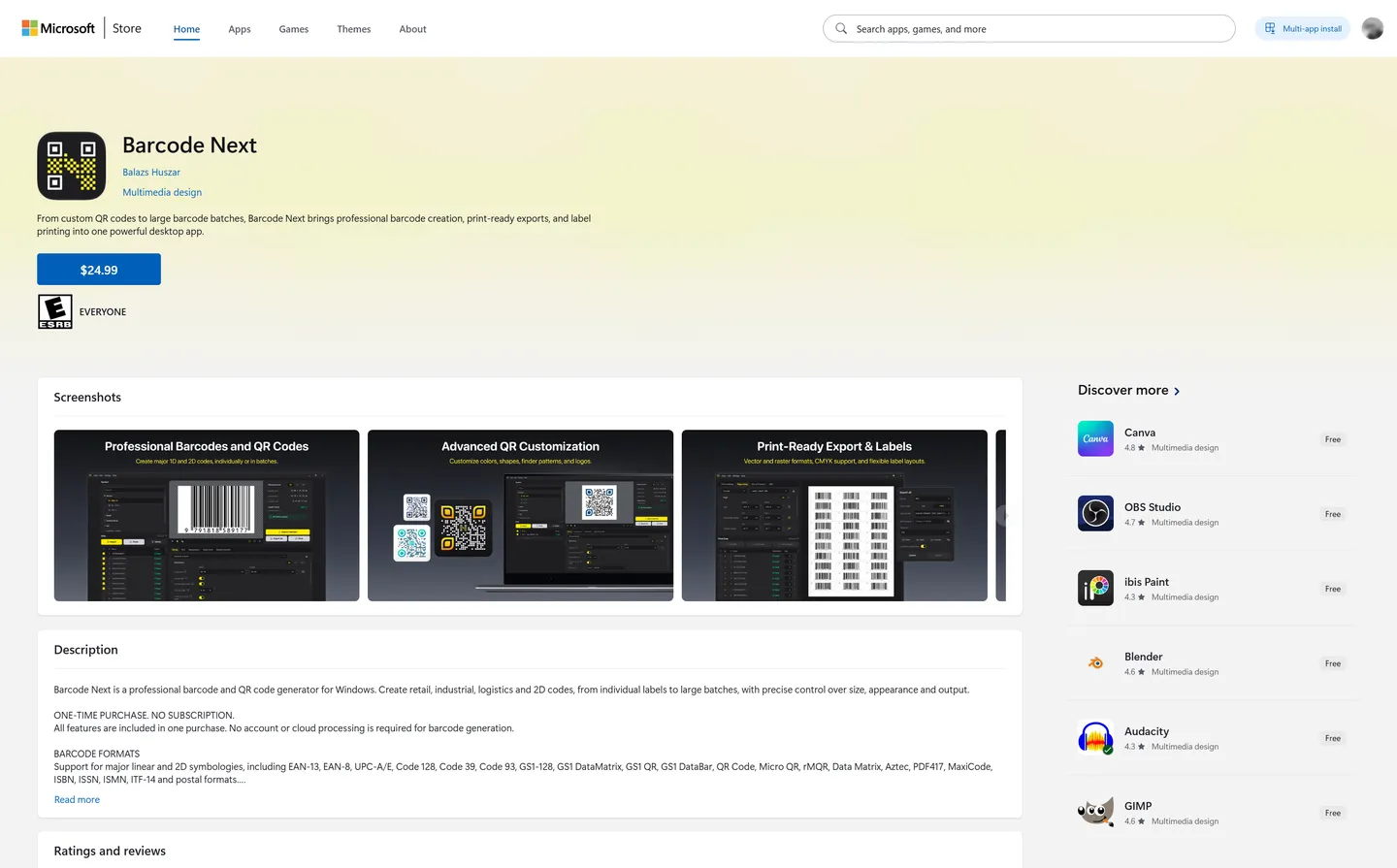
Barcode Next is free to download from the Mac App Store or Microsoft Store. You can create, customize, validate and preview barcodes without purchasing anything. File export and printing require a one-time Barcode Next Pro in-app purchase; Pro purchases are separate for each platform.
Install on macOS
- Open Barcode Next in the Mac App Store and confirm the operating-system requirements listed for that release.
- Install the free app with your Apple account. If you have purchased Pro, use that same Store account to restore it when needed.
- Open Barcode Next through Applications or Launchpad.
- At first launch, review the Settings dialog if shown. Choose Color theme, preferred Unit setup (mm or in) and save to continue.
- Use Help → Quick tour for a guided introduction, or create your first barcode.
Install on Windows
- Open Barcode Next in Microsoft Store and confirm the system requirements.
- Install the free app. If you purchased Pro, use the Microsoft Store account associated with that purchase.
- Open it from Start.
- Complete any first-launch Settings prompt; the default interface is otherwise ready for local editing.
- The app’s custom window menu provides Data, Edit, Settings and Help commands.
Free use and Pro licence status
Open Help → About Barcode Next to check the version and License status. In Free mode you can use every editor, barcode type, customization option, batch setting, export configuration and label-sheet preview. The preview is marked PREVIEW ONLY while Pro is inactive.
Barcode Next Pro is a one-time, non-subscription purchase that unlocks file export and label printing. The final Export and Print actions offer Unlock Pro to Free users. You can continue editing without buying Pro, and your existing export or print settings are preserved during the purchase.
If you previously purchased Pro, use Restore purchases. If an earlier Pro purchase cannot be verified, use Retry or Restore purchases in the licence-verification dialog; a verification failure does not mean you should buy Pro again.
Barcode Next uses the platform’s Store services instead of an independent activation server. Verified Store evidence may permit offline Pro output. When no usable verified entitlement is available, actual export and printing remain disabled until verification succeeds, but editing and previews continue. Temporary network problems do not revoke still-valid verified entitlement evidence.
Updates, reinstalling and saved files
Use the same Store for normal application updates. Updates using the same application identity are intended to retain app-managed settings and saved presets. Uninstalling is not equivalent to an update and may remove application-managed files; back up presets first.
To see or change the preset directories, open Settings → User data → Preset file locations. Selecting another directory does not move files from the old directory. On macOS, selecting a custom location through the native folder picker also grants access that is saved when you commit Settings.
The Store listing determines current system support; native Mac Store licence verification requires macOS 13 or newer in the current implementation.