 Barcode Next
Supported barcode types
How to choose between retail, linear, postal, GS1 and 2D barcode formats.
The Symbol panel determines the barcode symbology and therefore the data editor, available controls and format checks. A barcode cannot be made valid simply by choosing a similar-looking type: use the exact format requested by your trading partner, retailer, carrier or scanner system.
Select a format in the app
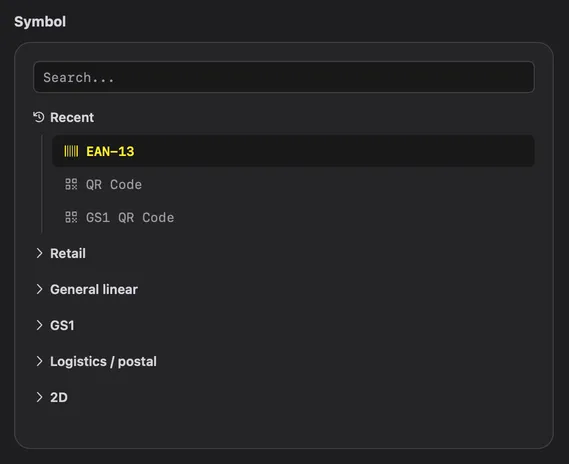
- Open the Symbol panel at the upper left of the generator workspace.
- Expand a family, or use symbol search to locate the name.
- Select the format. The Data panel and Options tabs update for that type.
- If the app warns that existing data will be discarded, stop and export or copy the records you need before confirming.
- Add a known valid sample value before adjusting appearance. Use the symbol reference directory for specific payload and checksum rules.
Which family should I use?
| If your destination expects… | Choose… | Check first |
|---|---|---|
| Retail product identifier | EAN-13, EAN-8, UPC-A, UPC-E | An assigned GTIN, check digit, required physical size |
| Book or serial-publication identifier | ISBN, ISSN, ISMN | Issued identifier and any EAN supplement |
| Internal alphanumeric tracking | Code 128 or Code 39 | Character set, check character requirements |
| Carton/outer packaging | ITF-14 | GTIN-14, bearer bars and print medium |
| GS1 logistics data | GS1-128 | Application Identifiers, FNC1 and separators |
| Compact GS1 marking | GS1 DataMatrix, GS1 QR Code | Structured GS1 element strings |
| URL or general 2D data | QR Code | Data type, version, error correction and quiet zone |
| Smaller or rectangular QR-family symbol | Micro QR, rMQR | Reader support and restricted capacities |
| Dense document symbol | PDF417, Aztec, Data Matrix | Required decoder, rows/columns or matrix size |
Other formats, including DataBar and postal symbologies, appear in the same Symbol tree. The Barcode Types reference identifies all supported families and linked technical details.
What changes after selection?
The Data table may switch between a single value field and structured fields. For example, QR Code has a Content type selector for guided data; MaxiCode exposes a Mode and special fields. Symbol specific may include error correction, check digit, a version or other permitted format settings.
Sizing, Text, Appearance and Quiet zone are capability-filtered. Missing controls generally indicate that the current symbology does not support those settings—not an installation fault.
Moving between symbols
Symbol option presets belong to their respective formats. An active record does not automatically turn into a valid record for the new format. After switching, inspect data requirements again and read any Health Check findings before export.