 Barcode Next


 Barcode Next for Windows
macOS
Download for free
Get started with Barcode Next. Try barcode formats, customize QR codes, prepare batches, configure export settings and preview label sheets.
- Version
- 1.0.0
- Requires
- macOS 13 or later
Create retail, GS1 and 2D barcodes on macOS, with precise dimensions, custom QR styling and files ready for design, packaging and label production.
Free to download, with optional Pro for file export and printing
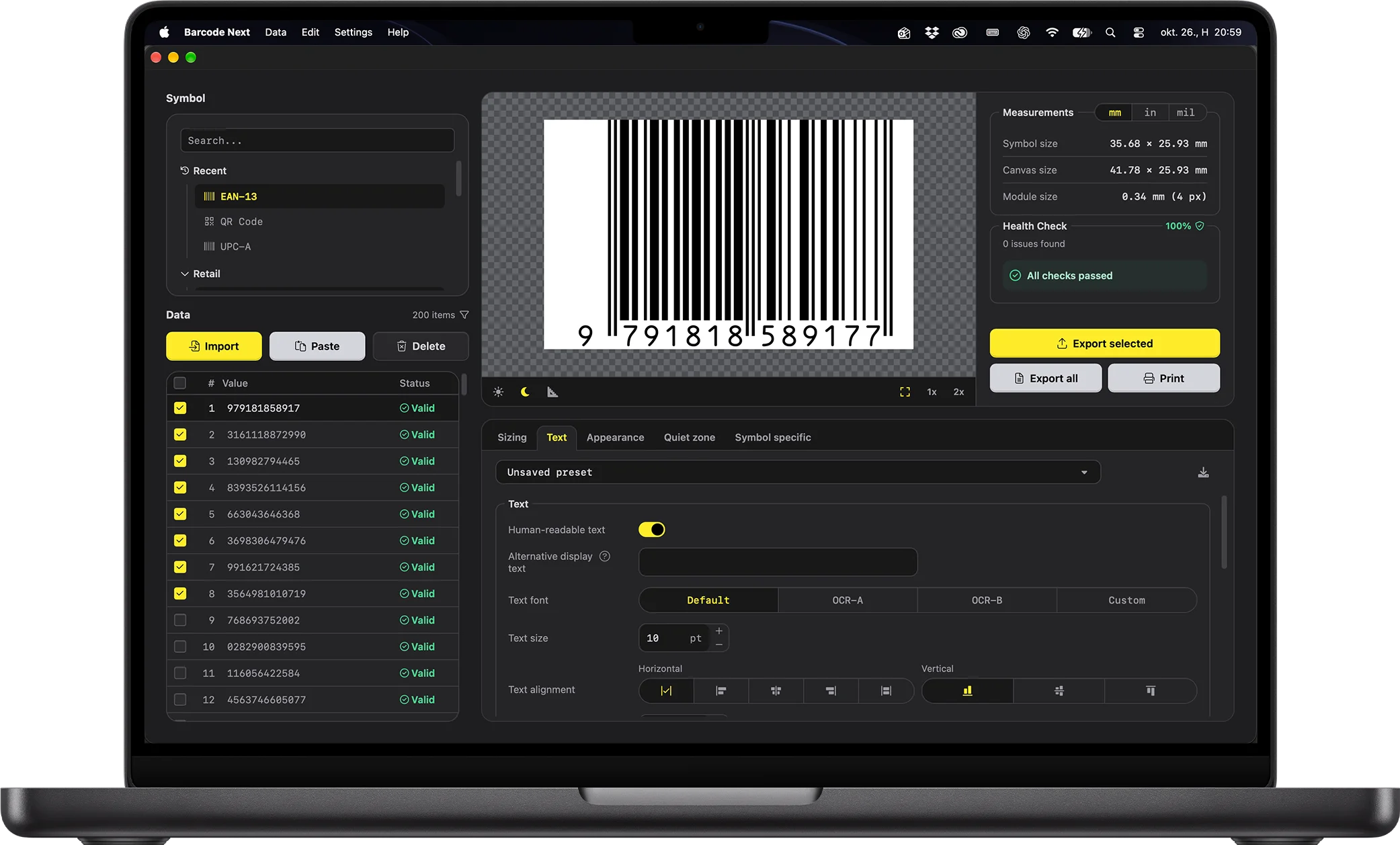
Create the barcode on your Mac, review its data and dimensions, then export artwork or prepare a label sheet without moving the work through an online generator.
The editor keeps the current value, live preview and relevant controls together. Choose the symbology first; the available sizing, check-digit and appearance settings follow that format.
Select a retail, linear, GS1 or 2D symbology for the intended use.
Check data rules, actual dimensions and the live barcode preview.
Save individual artwork, create multiple files or arrange labels.
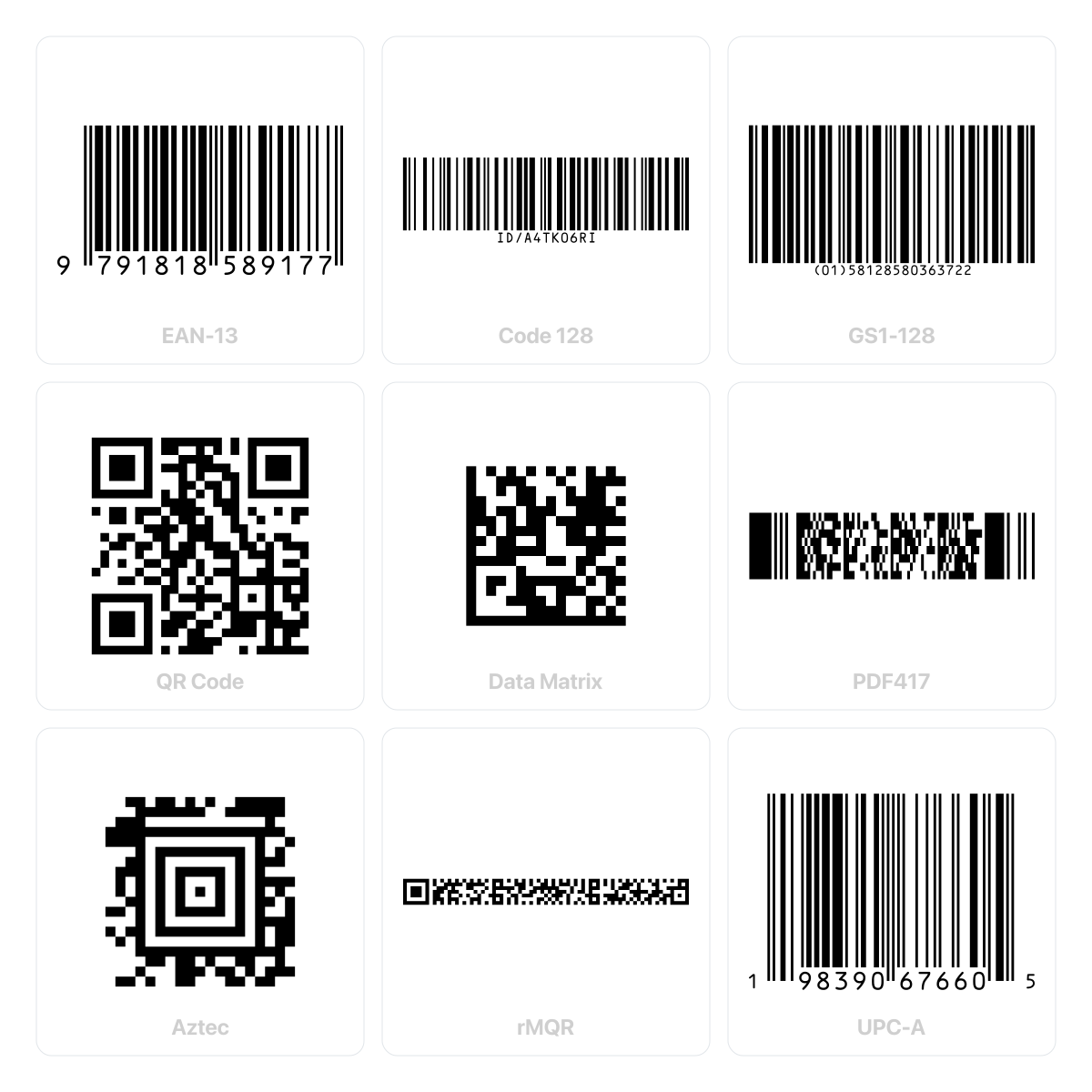
Use the code specified by your product, customer or scanning system. Barcode Next covers familiar EAN and UPC identifiers, Code 128 and other linear types, GS1 applications, QR Codes and specialist postal formats.
Selecting a format changes the input rules and available options. A retail barcode's check-digit and text layout requirements are different from those of a GS1 DataMatrix or QR Code.
EAN-13, EAN-8, UPC-A, UPC-E, ISBN, ISSN and ISMN
GS1-128, GS1 DataMatrix, GS1 QR Code, GS1 DataBar and ITF-14
Code 128, Code 39, Code 93, Codabar and Interleaved 2 of 5
QR, Micro QR, rMQR, Data Matrix, Aztec, PDF417 and postal types
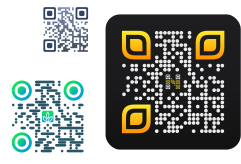
Standard and GS1 QR Codes support separate module and finder patterns, foreground and background colors, gradients, and centered SVG or PNG logos. Make the QR design fit the artwork while keeping error correction, dimensions and quiet zones configurable.
The editor previews style changes immediately. Decorative shapes and logos can affect readability, so test the exported code at its intended size and with the scanners that will be used.
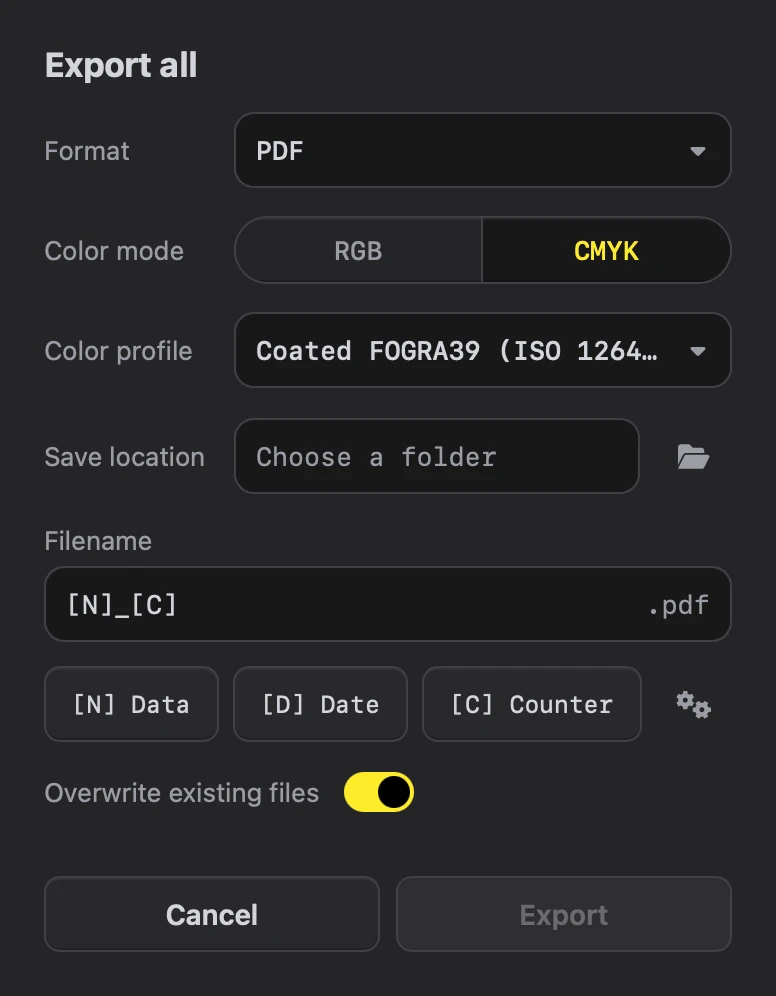
Save artwork in the format your production workflow needs. SVG, PDF and EPS retain scalable vector geometry; PNG, JPEG and TIFF provide raster files with a specified size and resolution.
For print work, PDF, EPS, JPEG and TIFF also support CMYK output with built-in or custom ICC profiles. Check the exported file at final size in its destination layout or print process.
SVG, PDF and EPS for scalable artwork in layouts and production files.
PNG, JPEG and TIFF with controlled dimensions and resolution.
CMYK with ICC profiles in PDF, EPS, JPEG and TIFF. SVG and PNG use RGB.
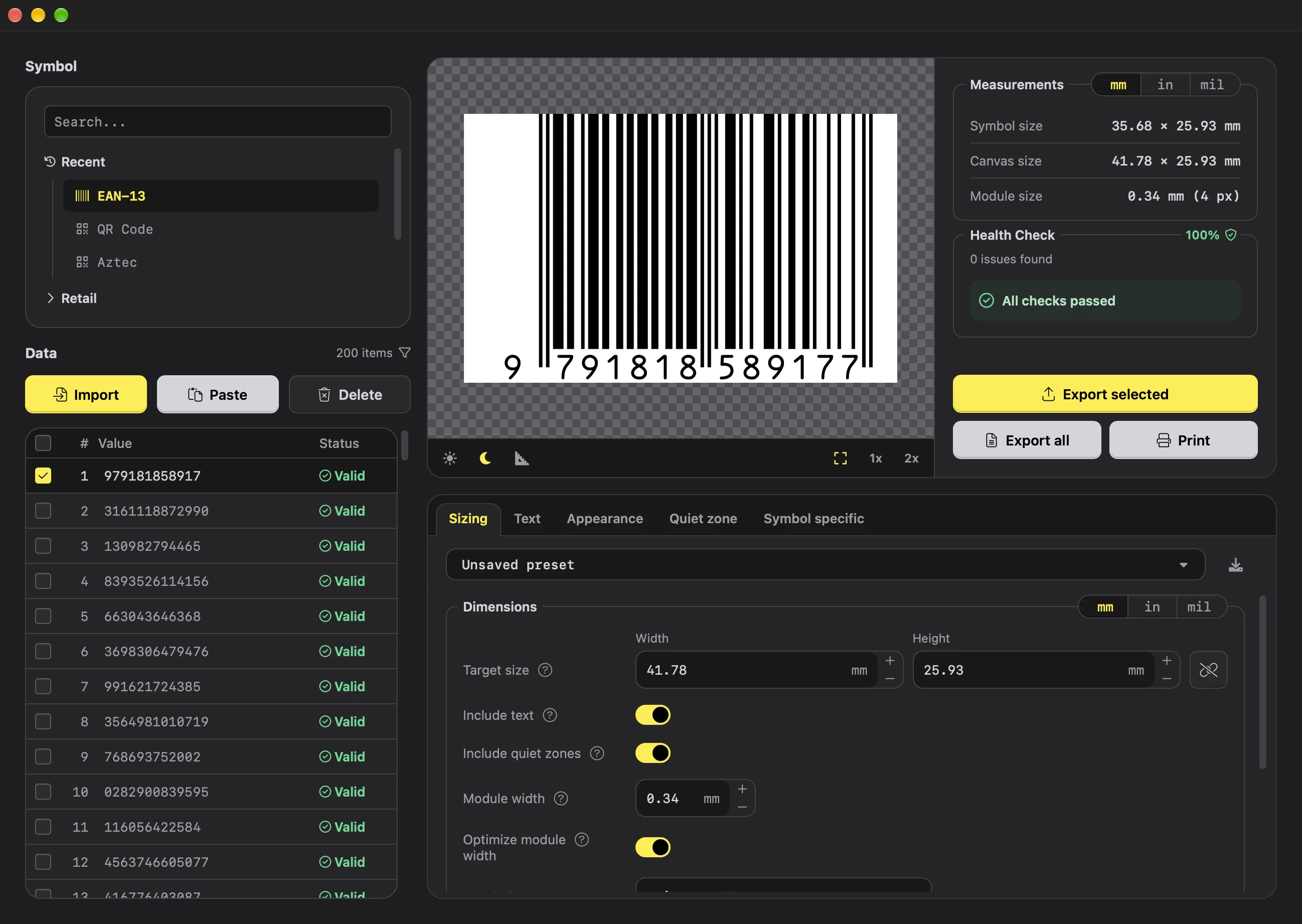
Import product identifiers from CSV or enter values into the Data table. Review each record against the selected barcode format while keeping size, appearance and export options consistent across the batch.
Export all valid records or a selection as separate files. Filename patterns can include the encoded data, date and a counter, so large batches do not need to be renamed one file at a time.
When placing the exported barcode in packaging artwork, preserve its physical dimensions and required quiet zones. Check the result at final print size.
CSV import and batch output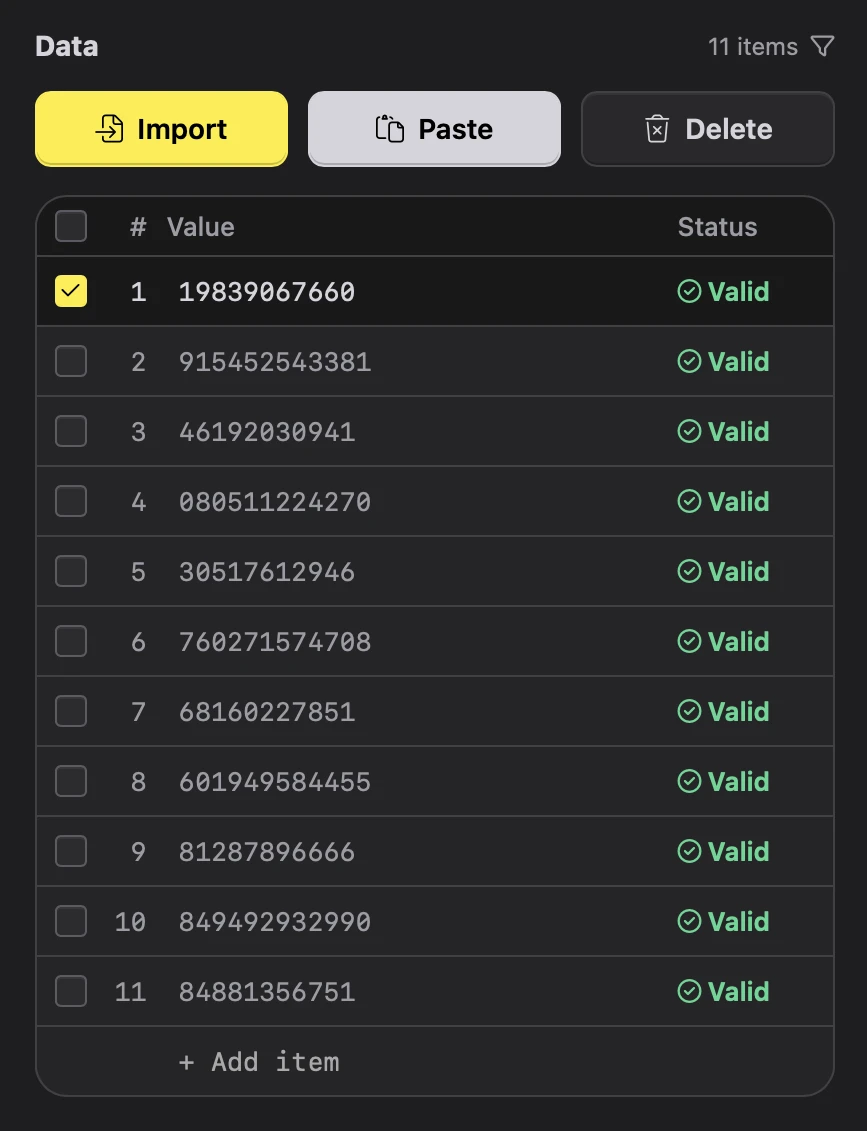
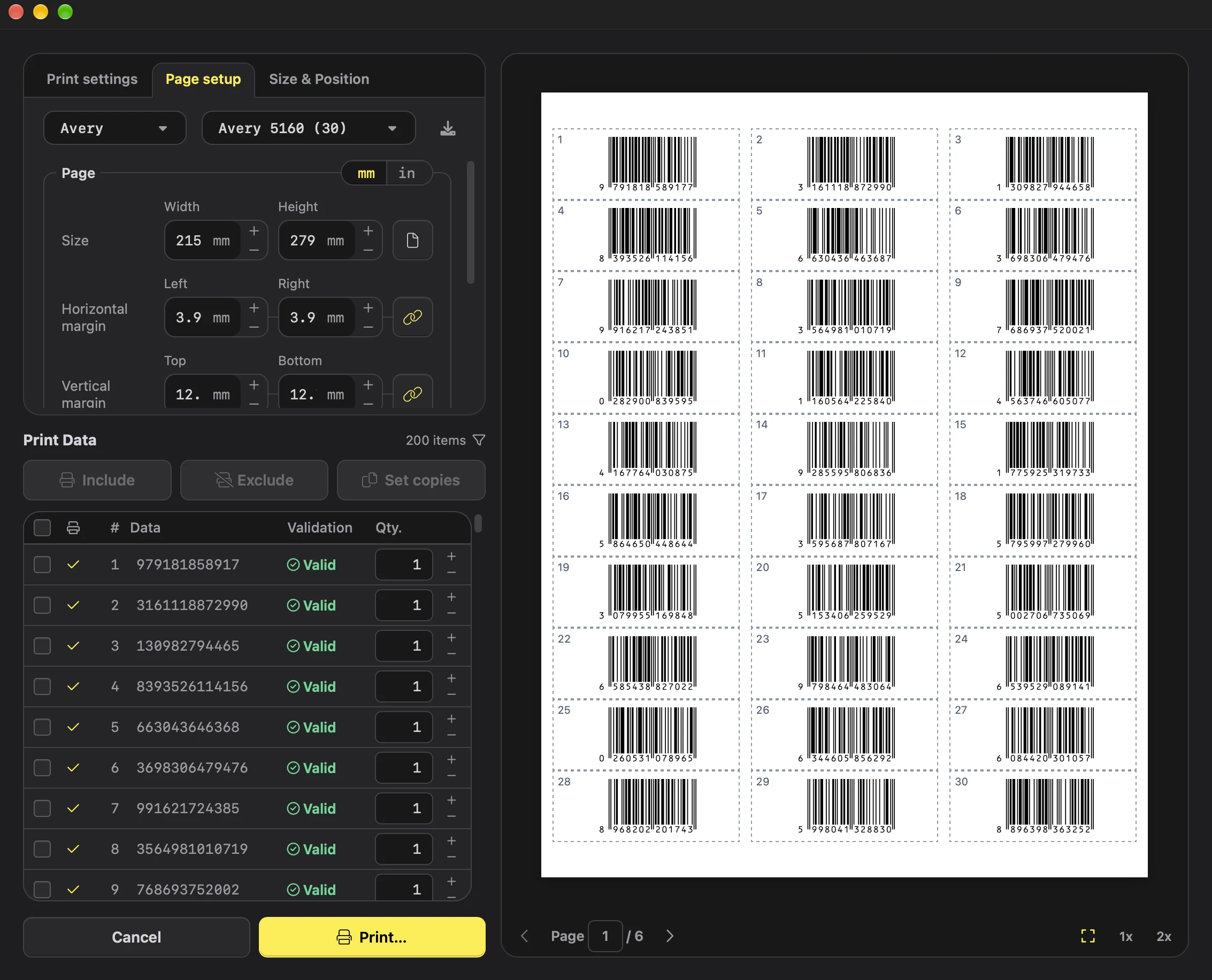
Select a commercial label template or define paper size, margins, rows, columns and label spacing. The print preview shows how the current barcode or selected CSV records will fit on the sheet.
Set copies per record, skip used positions on a partly filled first sheet, and adjust barcode placement inside each label. Check alignment on plain paper before printing the final stock.
Commercial and generic profiles, plus custom page geometry.
Selected rows, per-record copies and arranged sheets.
Page inspection, used-slot skipping and placement controls.
Barcode Next requires macOS 13 or later. See the official Mac App Store listing for current availability and compatibility information.
Yes. The same application includes common retail and linear barcodes, GS1 formats, QR Code, Data Matrix and other 2D symbologies. Available controls depend on the selected code type.
Yes. SVG, PDF and EPS are supported as vector formats. PDF, EPS, JPEG and TIFF offer CMYK output; SVG and PNG use RGB.
Yes. Import records, check them in the Data table, then export individual barcode files or print selected values on a configured label sheet.
Barcode Next is free to download on both platforms. Pro purchases are separate for the Mac App Store and Microsoft Store; a macOS Pro purchase applies only to the Mac App Store version.
No Barcode Next account is required. Barcode data is generated and processed locally. Store licence verification is separate and may require an internet connection.
A focused desktop workspace for creating, checking and preparing barcodes, with precise dimensions, QR customization, batch data and flexible label layouts on macOS.
Looking for another platform?
Barcode Next for Windows
Download for free
Get started with Barcode Next. Try barcode formats, customize QR codes, prepare batches, configure export settings and preview label sheets.